
The archive system supports both accessibility-related legacy archiving and general archival preservation. Archive functionality must be enabled by an administrator before use, see Settings for details.
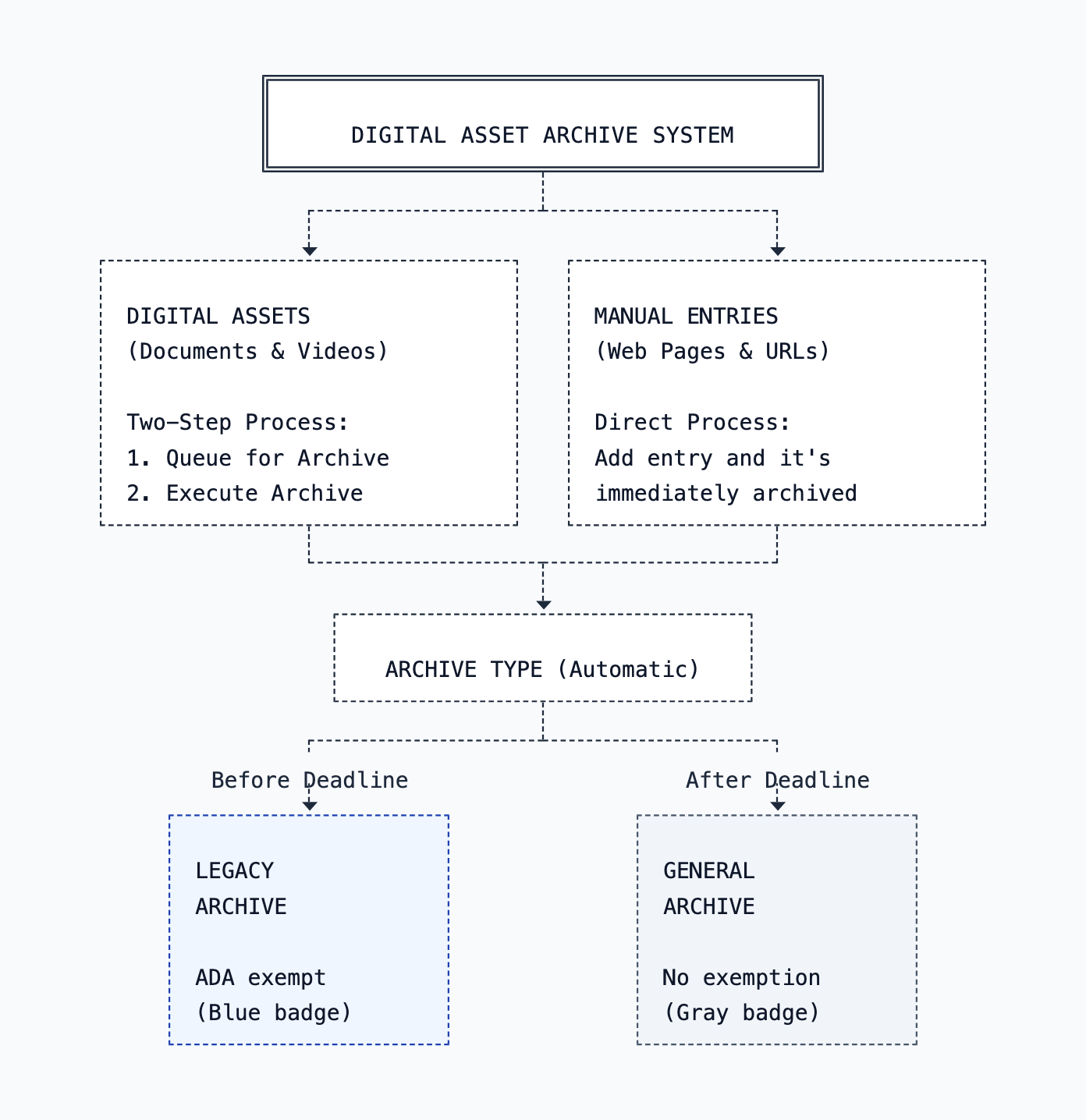
Archive Types
| Type | When Created | Purpose | ADA Exemption |
|---|---|---|---|
| Legacy Archive | Before deadline | ADA Title II compliance | Yes (if unmodified) |
| General Archive | After deadline | Reference/recordkeeping | No |
- Legacy Archives: Created before the ADA compliance deadline (default: April 26, 2027). Under ADA Title II (April 2024), archived content is exempt from WCAG 2.1 AA requirements if kept for Reference, Research, or Recordkeeping purposes.
- General Archives: Created after the deadline. Retained for reference purposes without claiming ADA accessibility exemption. If modified, removed from public view and flagged for audit.
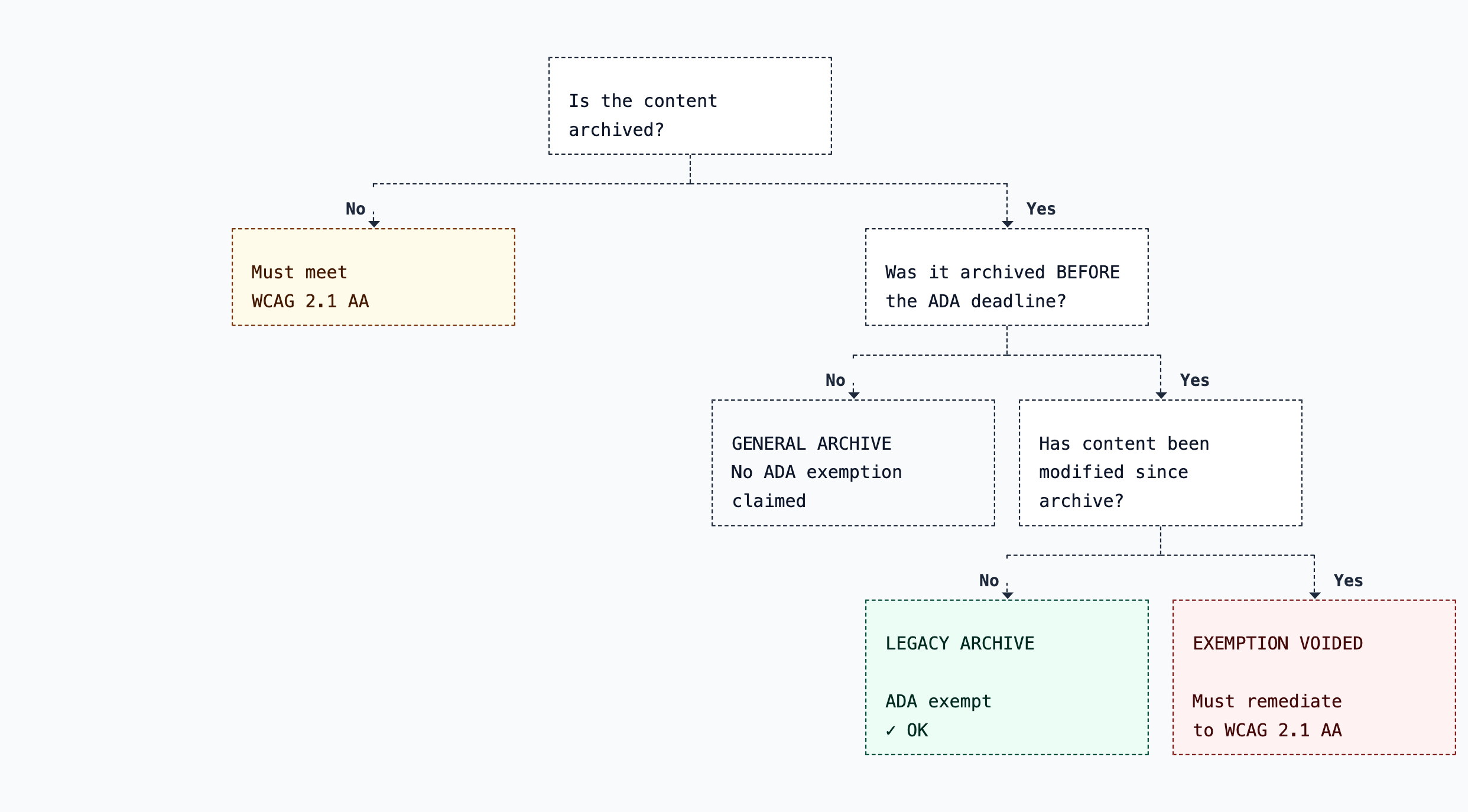
ADA Compliance Decision Tree
Use this diagram to understand whether archived content needs to meet accessibility requirements.
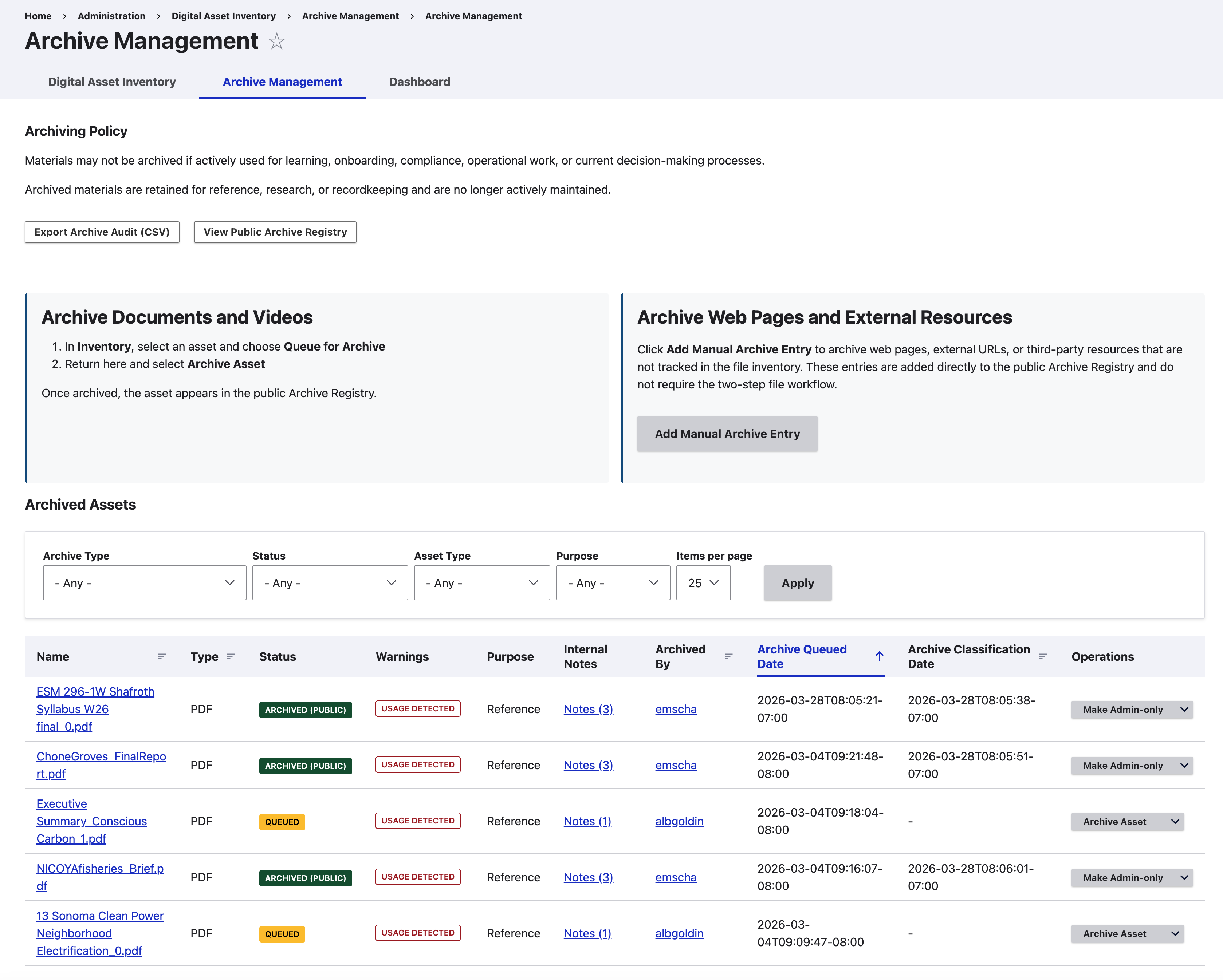
Two-Step Archive Process (Documents)
Archiving documents and videos from the inventory requires two steps to ensure proper review before finalizing.
Step 1: Queue for Archive
- Navigate to
/admin/digital-asset-inventory - Click Queue for Archive next to a document
- Select an archive reason and provide a public description
- Click Queue for Archive
Step 2: Execute Archive
- Navigate to
/admin/digital-asset-inventory/archive - Click Archive Asset for a queued document
- Choose visibility: Public or Admin-only
- Click Archive Now
Archiving Documents Still In Use
By default, documents must be removed from all content before archiving. However, if your administrator has enabled "Allow Archive In Use" in settings:
- Documents and videos can be archived while still referenced by content
- A confirmation checkbox is required acknowledging the document is in use
- Links throughout the site automatically route to the Archive Detail Page
- The archive record tracks that it was "archived while in use" for audit purposes
Note: This feature only applies to documents and videos, not images.
Archive Link Routing
When a document or video is archived, links to that file are automatically updated throughout the site:
- Links point to the Archive Detail Page instead of the direct file URL
- Link text shows "(Archived)" label so visitors know before clicking
- This applies to links in content, menus, media embeds, and custom templates
What gets routed: text links to documents and videos, menu links to files, media embeds in CKEditor content, and external URLs archived via manual archive entry (with normalized URL matching).
What is NOT routed: images (would break page layouts), audio files, compressed files (ZIP, etc.), and Archive Registry pages (listing and detail pages).
When an archive is removed (status becomes Archived Deleted), links revert to direct file URLs.
Configurable Archived Link Label
The "(Archived)" label on links to archived content can be customized or disabled by an administrator. When the label is disabled, links still route to the Archive Detail Page but no visible indicator is shown. Image links still receive a title attribute for accessibility. See Settings for configuration details.
External URL Matching
External URLs (archived via manual archive entry) use normalized URL comparison for matching:
- Scheme and host are lowercased (
HTTPS://Example.Com→https://example.com) - Default ports are removed (
:80for http,:443for https) - Trailing slashes are removed (
/page/→/page) - Query strings are preserved (different parameters = different resources)
- Fragment identifiers are ignored (client-side only)
Understanding Archive Dates
The system tracks two important dates:
- Archive Record Created Date — When the archive record was created (Step 1: Queue). Represents the intent to archive.
- Archive Classification Date — When the archive was executed (Step 2: Execute). Represents the formal compliance decision. This date is immutable and determines Legacy vs General Archive.
Items can sit in "queued" status while waiting for content references to be removed. The Classification Date (not Created Date) determines archive type for compliance purposes.
Archive Filtering Options
- Archive Type: Legacy Archive (Pre-deadline), General Archive (Post-deadline)
- Status: Queued, Archived (Public), Archived (Admin-Only), Archived (Deleted), Exemption Void
- Asset Type: Documents, Videos, Web Pages, External Resources
- Purpose: Reference, Research, Recordkeeping, Other

Archive Status Values
| Status | Description |
|---|---|
| Queued | Awaiting archive execution (file-based only) |
| Archived (Public) | Visible in public Archive Registry at /archive-registry |
| Archived (Admin-Only) | Archived but only visible to administrators |
| Archived (Deleted) | Terminal state: file deleted, entry removed, unarchived, or General Archive modified |
| Exemption Void | Terminal state: Legacy Archive modified after archiving; ADA exemption voided |
Note: Both Archived (Deleted) and Exemption Void are terminal states with no available operations. Records are preserved for audit trail purposes.
Archive Operations
| Action | Description | Available For |
|---|---|---|
| Archive Asset | Execute archive with visibility choice | Queued |
| Remove from Queue | Cancel pending archive | Queued |
| Make Admin-only / Make Public | Toggle between Public and Admin-only | Archived (Public/Admin) |
| Edit Entry | Update title, description, notes | Archived (Public/Admin) — manual only |
| Unarchive | Remove from registry (sets status to Archived Deleted) | Archived (Public/Admin) |
| Delete File | Delete physical file, preserve archive record | Archived (Public/Admin) — file-based only |
| Remove Entry | Remove manual entry from registry | Archived (Public/Admin) — manual only |
Terminal states (no operations): Archived (Deleted), Exemption Void
Warning Flags
Flags indicate problems but don't change status. "Yes = problem".
| Flag | Meaning | Resolution |
|---|---|---|
| Usage Detected | Content references document | Remove references, re-scan |
| File Deleted | File was intentionally deleted | No action (audit record) |
| Integrity Issue | Checksum mismatch (files) | Investigate modification |
| Modified | Content modified (manual entries) | Advisory for audit |
| Late Archive | Archived after ADA deadline | Advisory only, determines archive type |
| Prior Exemption Voided | Forced to General Archive due to prior voided exemption | Advisory only |
Exemption Void
When a Legacy Archive (pre-deadline) is modified after archiving, the system automatically voids its accessibility exemption:
- The integrity check detects the file's checksum has changed (file-based) or content was edited (manual entries)
- Status changes from "Archived (Public/Admin)" to "Exemption Void"
- The document is removed from the public Archive Registry
- An "Exemption Voided" badge appears in Archive Management
Important: Exemption Void is a permanent terminal state with no available operations. The record is preserved as compliance documentation that an ADA exemption violation occurred.
Re-archive policy: Files/URLs with voided exemptions can be archived again, but any new entry is automatically classified as General Archive regardless of the current date. The voided record remains as the immutable audit trail.
Manual Archive Entries
In addition to archiving files through the inventory, you can manually add web pages and external resources to the Archive Registry.
- Navigate to
/admin/digital-asset-inventory/archive - Click Add Manual Archive Entry
- Enter the title, URL, and archive reason
- Choose visibility (Public or Admin-only)
- Click Add to Archive Registry
Supported content types: Web Page (internal pages on this website — nodes, taxonomy terms, or any page with a path alias) and External Resource (documents or pages hosted elsewhere).
Page URL autocomplete: Start typing a page title, taxonomy term name, or path alias to search.
URL validation: Internal paths are resolved to absolute URLs. File URLs (PDFs, documents, videos) are blocked — use the inventory instead. Media entity paths are blocked — use the inventory instead. Duplicate URLs are detected and prevented.
Removing manual entries: When a manual archive entry is removed, the record is preserved with archived_deleted status for audit trail purposes. This matches the behavior of file-based archives.
Archived Content Banner
When an internal page (node, taxonomy term, etc.) is archived via manual archive entry, an "Archived Material" banner automatically appears at the top of the page:
Archived Material
This material is retained for reference, research, or recordkeeping purposes. It is no longer updated and may not reflect current information, services, or policies.
Edit Protection for Archived Content
When editing content that has an active archive record, safeguards prevent accidental loss of the archive exemption.
| Archive Type | Warning |
|---|---|
| Legacy Archive | "This content is currently recorded as archived for ADA Title II purposes. If you save changes, it will no longer qualify as archived/exempt." |
| General Archive | "This content is currently archived. If you save changes, it will be flagged as modified in the Archive Registry for audit tracking purposes." |
Users must check an acknowledgment box before saving. When saved:
- Legacy Archives: Status changes to "Exemption Void"
- General Archives: Status changes to "Archived (Deleted)" with Modified flag
Private File Handling
Files stored in Drupal's private file system (private://) are automatically detected during scanning. On the public Archive Registry detail pages:
- Anonymous users see a login prompt with a link to authenticate
- After logging in, users are redirected back to the archive detail page
- CAS (Central Authentication Service) login is used if available
Internal Notes
Internal notes allow administrators to document decisions and add context about archived items.
What Notes Are For
- Recording why a document was archived
- Documenting conversations with content owners
- Noting accessibility request history
- Tracking remediation decisions
Important: Notes are internal-only. They are not visible to the public and are not included in audit exports.
Viewing and Adding Notes
- Go to Archive Management
- Find the archived item
- Click Notes in the Operations column
- The notes page shows:
- Initial Note — Context from when the archive was created
- Notes Log — Additional notes added after archiving
To add a note, enter text (max 500 characters) and click Add Note.
Notes Are Append-Only
Once added, notes cannot be edited or deleted. This preserves the complete history for audit purposes. If you need to correct information, add a follow-up note with the correction.
Notes Link Display
The Notes link shows the number of notes in parentheses:
- Notes — No notes yet (users with add permission only)
- Notes (3) — Three notes exist
Required Permissions
| Permission | What It Allows |
|---|---|
| Archive digital assets | Full access: view and add notes |
| View digital asset archives | Read-only: view notes but cannot add |
Archive Audit CSV Export
Export archive records for compliance audits:
- Navigate to
/admin/digital-asset-inventory/archive - Click Export Archive Audit (CSV)
The export includes all archive records with audit-ready columns: Archive ID (UUID), Name, Asset Type, Archive Type, Archive Classification Date, Current Status, Archived By, Deleted Date, Deleted By, Archive Reason, Public Description, File Checksum (SHA-256), all warning flags with descriptive values, Original URL, and Archive Reference Path.
All dates use ISO 8601 format (e.g., 2025-12-29T10:22:41-08:00).