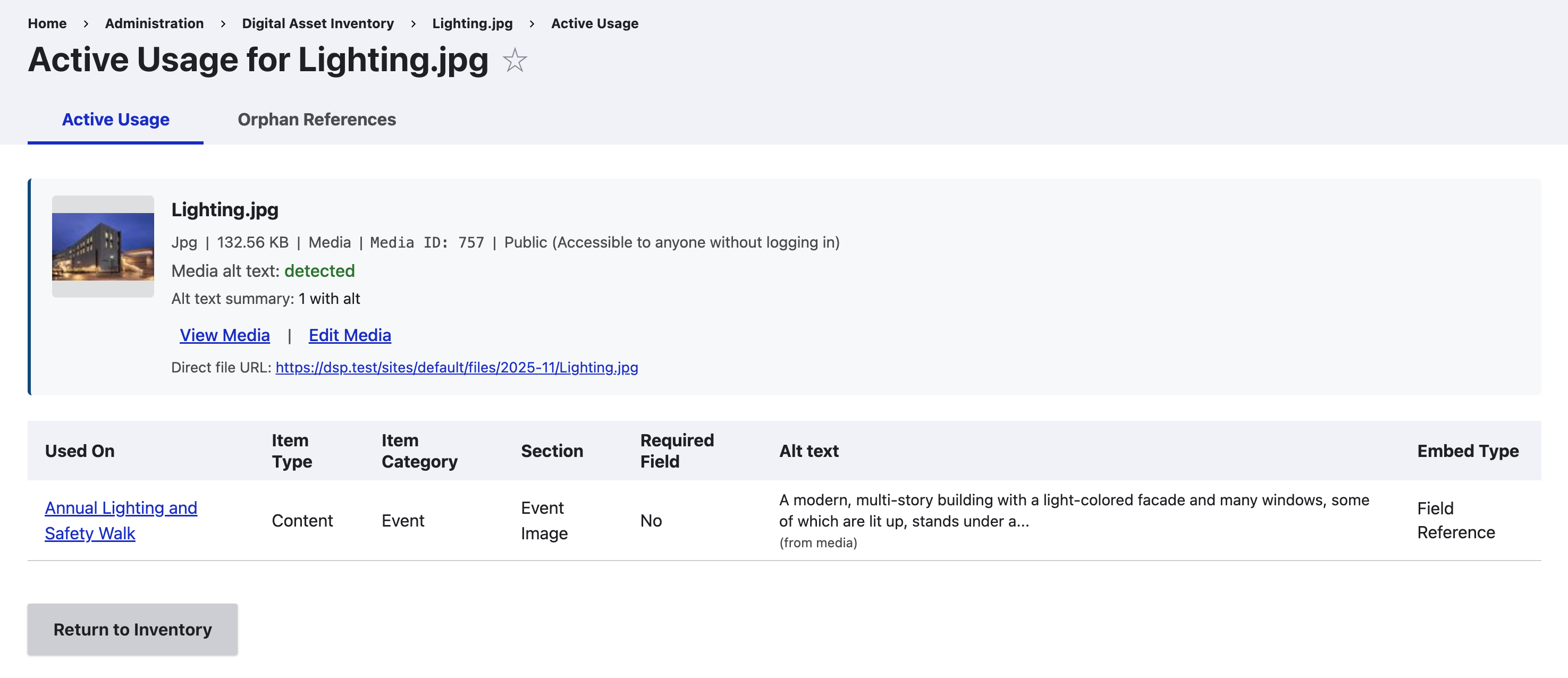
This page covers how to run a scan, filter your inventory results, export reports, and view detailed asset usage information.

Running a Scan
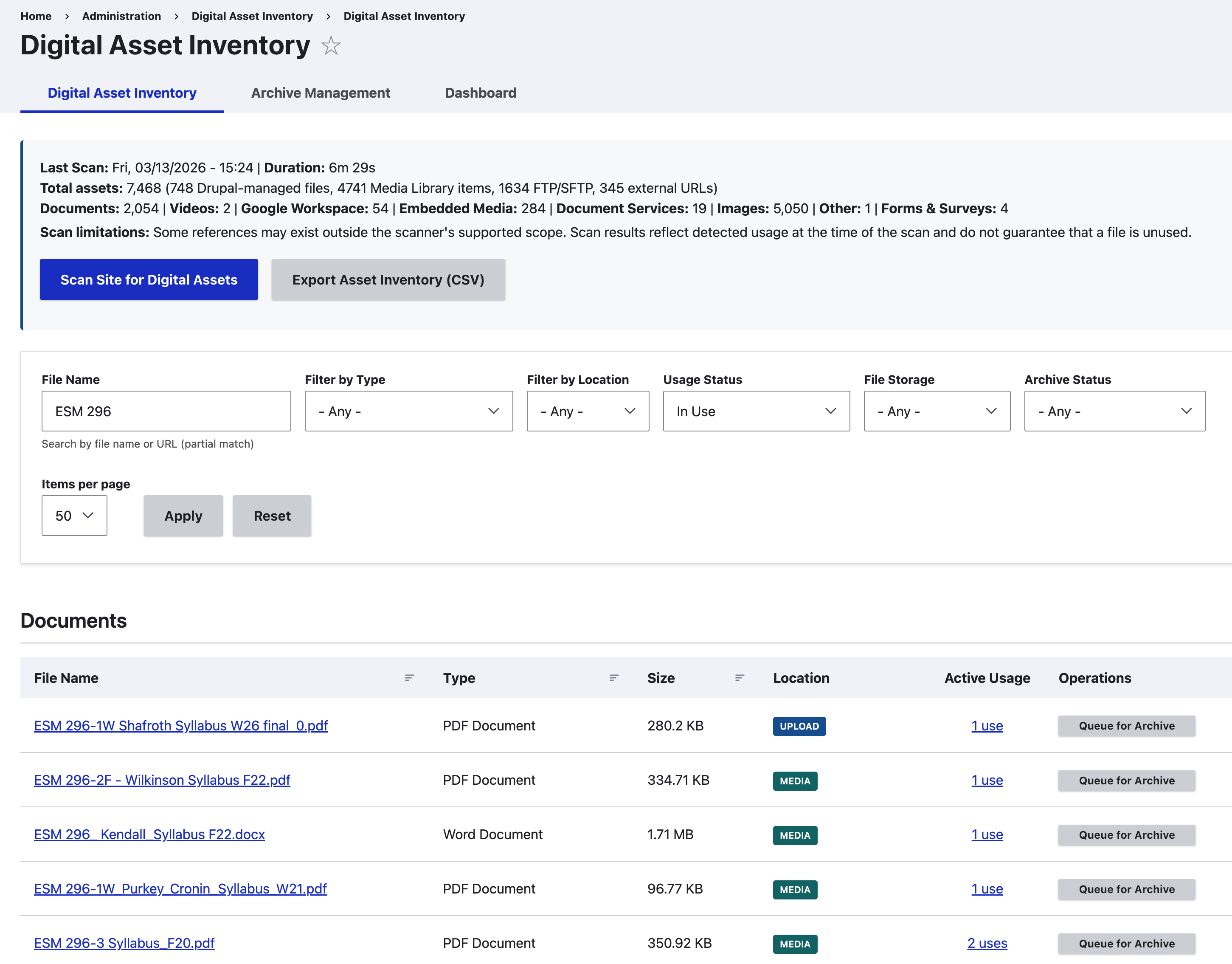
- Navigate to
/admin/digital-asset-inventory - Click Scan Site for Digital Assets
- Wait for the batch process to complete
- View the inventory results

Filtering Options
Use the filters on the inventory page to narrow results:
- File Name: Search by file name or URL (partial match)
- Filter by Type: Documents, Videos, Audio, Images, Google Workspace, Document Services, Forms & Surveys, Education Platforms, Embedded Media, Other, or specific asset types (PDF, Word, etc.)
- Filter by Location: Upload, Media, Server, External
- Usage Status: Filter by whether assets are in use on the site
- File Storage: Public Files Only, Private Files Only (files requiring authentication)
- Items per page: Control the number of results displayed per page
When archiving is enabled, an additional Archive Status filter appears: Not Archived, Queued, Archived (any/Public/Admin-Only). Badges display for active statuses only. Terminal states (Exemption Void, Archived Deleted) show no badge since files can be re-archived.
CSV Export
Export the full digital asset inventory:
- Navigate to
/admin/digital-asset-inventory - Click Export Asset Inventory (CSV)
The export includes all scanned assets with the following columns: File Name, File URL, Asset Type, Category, MIME Type, Location, File Size, Active Use Detected, and Used In.
Viewing Asset Usage
To see where an asset is used across the site:
- Navigate to
/admin/digital-asset-inventory - Click on the number in the Active Usage column for any asset
Inventory Columns
Each asset in the inventory results table is shown with the following columns:
- File Name: The asset's file name, with the resolved display title shown above it (or the URL, for external assets)
- Type: Asset type (PDF, Word, Excel, JPG, etc.)
- Size: File size in human-readable format (KB, MB)
- Location: How the file was added to Drupal
- Upload: Uploaded through file fields
- Media: Uploaded through Media Library
- Server: Added via FTP/SFTP outside Drupal
- External: External URL (Google Docs, YouTube, etc.)
- Active Usage: The number of places the asset is used on the site. Click the count to open the asset usage detail page. Orphan references are flagged here as well.
- Operations: Actions available for the asset, such as Queue for Archive (when archiving is enabled), Archive URL for external resources, or Delete.
Usage Table
Shows where the asset is referenced:
| Column | Description |
|---|---|
| Used On | Links to the content where the asset is used |
| Item Type | The entity type (Node, Media, Block, etc.) |
| Item Category | The content type or bundle (Page, Article, etc.) |
| Section | The field label where the asset appears (e.g., "Hero Image") |
| Required Field | Whether the field is required on that content type |
Embed Type Column
The usage table shows an "Embed Type" column for all asset types, indicating how the asset is embedded in content:
| Embed Type | Description |
|---|---|
| Media Embed | Embedded via CKEditor media button (<drupal-media>) |
| Field Reference | Referenced via media or file field |
| HTML5 Video | Raw <video> tag in content |
| HTML5 Audio | Raw <audio> tag in content |
| Text Link | Hyperlink (<a href>) to the file |
| Inline Image | Inline <img> tag in text content |
| Object Embed | Legacy <object> tag in text content |
| Embed Element | Legacy <embed> tag in text content |
| Text URL | External URL found in text content |
| Link Field | URL from a Drupal Link field |
| Menu Link | Link in a menu |
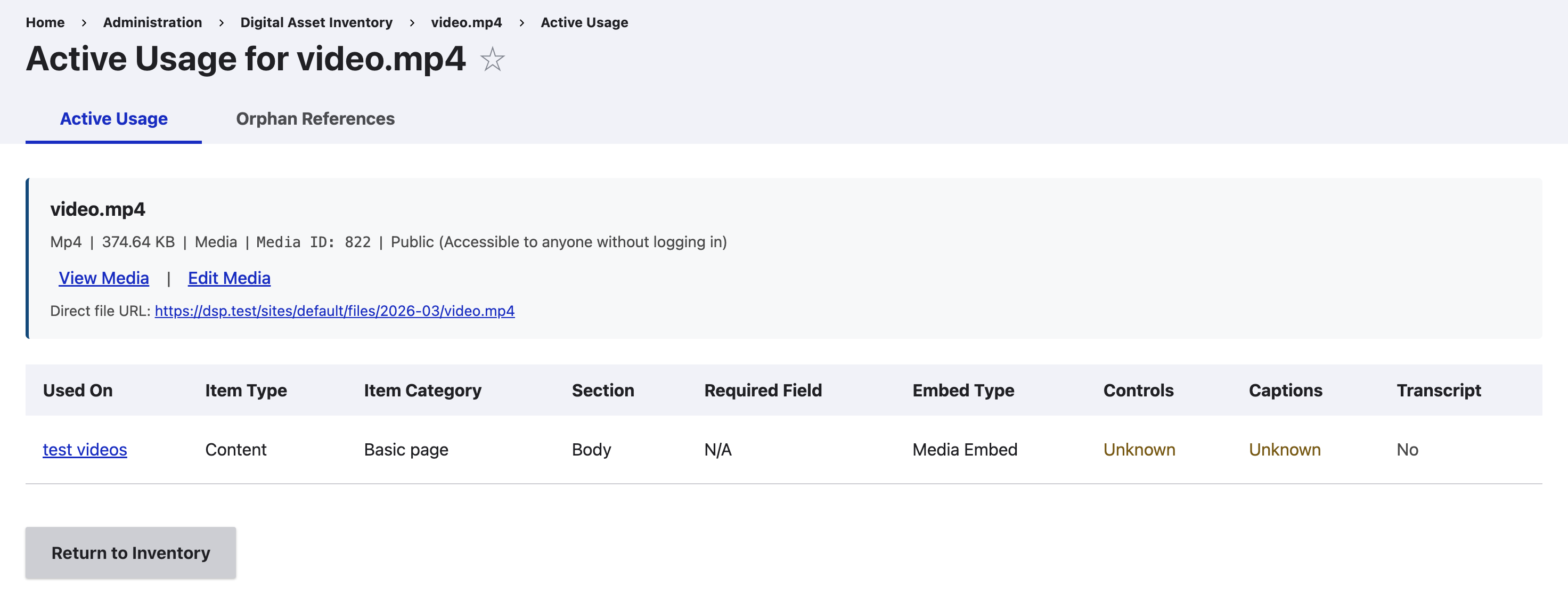
Video/Audio Accessibility Signals
For video and audio assets, additional columns show accessibility signals:
| Column | Values | Description |
|---|---|---|
| Controls | Yes / No / Unknown | Whether playback controls are present |
| Captions | Yes / No / Unknown | Whether captions/subtitles are present |
| Transcript | Yes / No / Unknown | Whether a transcript link is nearby |
Note: Signal detection depends on embed type. HTML5 embeds can be analyzed directly; Media Library embeds may show "Unknown" for some signals.
Alt Text Status
For image assets, the usage table shows an "Alt Text" column with per-usage evaluation:
| Status | Display | Meaning |
|---|---|---|
| Detected | Alt text preview (truncated to 120 chars) | Alt attribute found with text |
| Not Detected | "Alt text not detected" | No alt attribute on the image |
| Decorative | "Decorative image" | Empty alt attribute (alt="") |
| Not Evaluated | "Not evaluated" | Could not determine alt text status |
| Not Applicable | — | Asset type does not use alt text |
When alt text is detected, the source is shown in parentheses:
| Source | Meaning |
|---|---|
| content override | Alt text set on this specific content item |
| inline image | Alt text from an <img> tag in a text field |
| from media | Alt text inherited from the Media entity |
| managed by template | Alt text is generated by site templates |
The asset info header also displays an alt text summary strip for images, showing the overall alt text status across all usages of that image.